Your company has an account with us: you see professional prices, make purchases, and manage your documents from "My account."
#Request registration as a customer
It is requested from "Company Data", with the tax data, and is reviewed by a member of our team.
Registration is not automatic: the company's tax data is provided and someone checks it before accepting.
Until accepted, the account continues to function as a web user —you can search and save favorites—, but without professional prices or purchase.
- Step 1
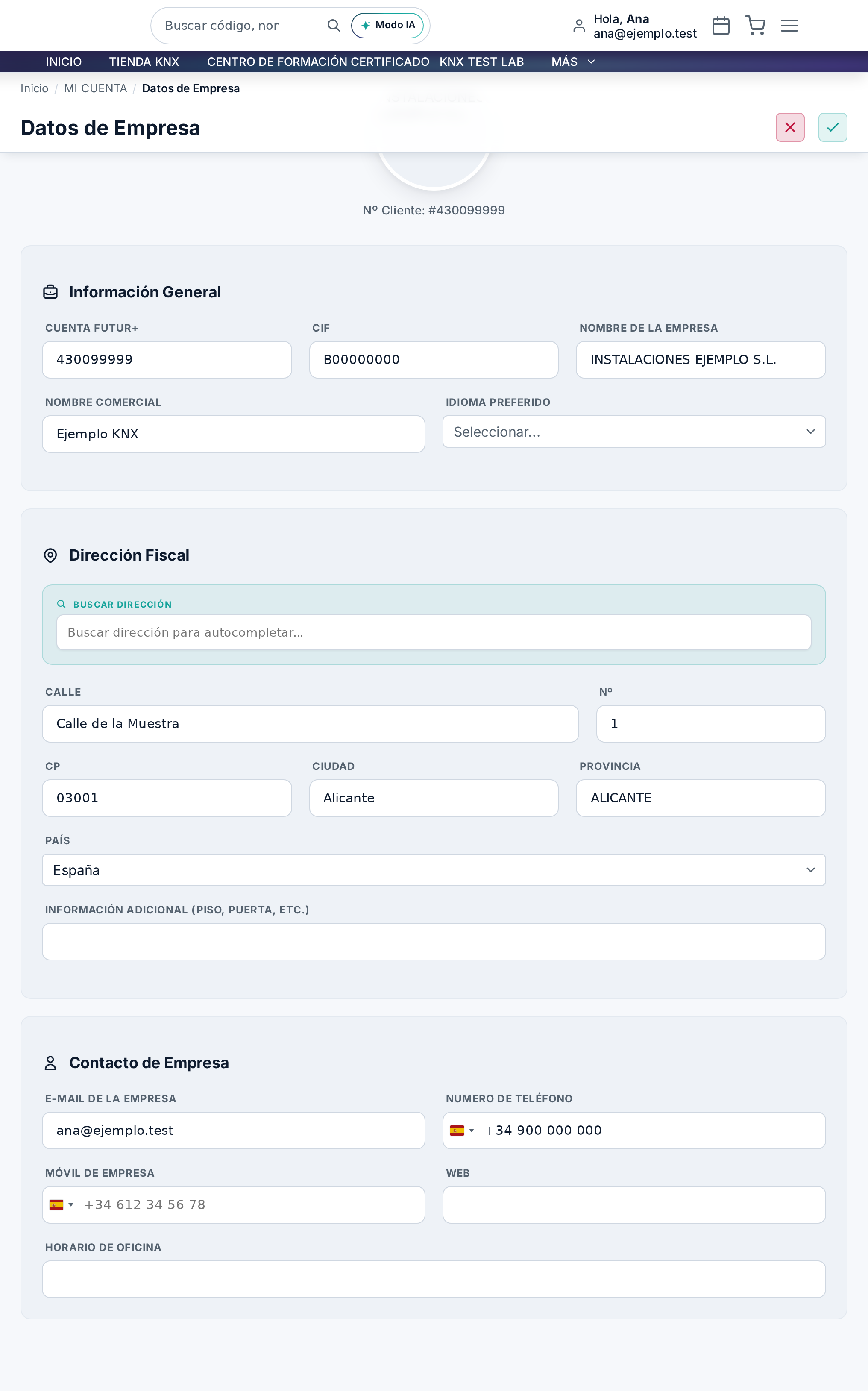
Go to "My account" → "Company Data"
This is the screen where your company's tax data lives.
- Step 2
Fill in the tax data
Company name, NIF or intra-community VAT and tax domicile. The VAT is checked, so it is advisable to copy it exactly as it appears.
- Step 3
Submit and wait for acceptance
As soon as it is accepted, the prices you see change and the cart opens. We will notify you by email.
#Billing and shipping addresses
Addresses are saved in "Billing and Shipping", and you can have multiple shipping addresses.
The billing address is the company's tax address. There can be several shipping addresses —the warehouse, a construction site, a client's home— and they are chosen for each order.
The country of the shipping address is not a detail: shipping costs depend on it and, in some cases, whether a product can be sold there.
#Your purchase conditions
"My purchase conditions" brings together the tariff applied to you and the conditions agreed with your sales representative.
The prices you see on the web already have your rate applied: there is no need to ask for a quote to know the cost.
If something doesn't match what you had agreed, this screen is the place to check it before calling.
#The shopping cart
"Your Cart" gathers what you are going to order; from there you proceed to process the order.
The cart can be reviewed entirely before committing: quantities, references and the amount with your applied rate.
It can be emptied at once, and what you remove is not lost if you had it on a favorites list.
#Process the order
You choose the shipping address, see the shipping costs and taxes, and confirm with your payment method.
When processing, you choose which address it goes to. Shipping costs and taxes are calculated with that address, so changing it changes the total.
If you have a discount code, it is entered in this step and the amount is recalculated on display.
Nothing is charged until you confirm. Before that button there is a summary with everything: lines, shipping costs, taxes and total.
#Payment method
In "Payment Method" is the one you have agreed upon; some require providing a signed mandate.
The payment method for your account is the one agreed with administration; it can be consulted on this screen.
If yours is direct debit, the signed SEPA mandate is required. It is provided from this same screen.
#Budgets, orders, delivery notes and invoices
Each document type has its listing in 'My account', and from each one you can access the detail.
The purchase journey leaves four traces: Budgets, Orders, Delivery notes and Invoices. Each one has its own screen.
From the detail of a document, you can leave comments, which is the correct place to ask about that specific order: the question is attached to the document and is not lost in an email.
Some documents must be expressly accepted. When this is the case, the document itself will ask you to do so.
#Organize by projects
You can classify each file in a job, and the classification includes budget, delivery notes and invoices.
If you work by jobs, 'My projects' allows you to group documents by job instead of by date.
Classification is done on the entire file: when assigning a document to a project, the budget, delivery notes and invoices for that same operation go with it.
What has not been classified is not lost: it remains in a separate section from which it can be distributed later.
#Returns and breakdowns (RMA)
A return or breakdown is opened as an RMA and tracked from your account until it is closed.
The RMA is the channel: it is opened by indicating what product and what is happening, and from there it has its own status and thread.
Following it from the web avoids the conversation of "what happened with that?": the status is visible and so is the history.
#Subscriptions and courses
What is contracted that is not material —courses, subscriptions— lives on its own screen.
"Subscriptions and Courses" gathers what is not a physical product, so that it does not mix with material orders.