In addition to buying, you manage who else from your company enters the account and with what permissions.
#What is an administrator client
He is the one in charge within the company account: he gives access to his colleagues, changes their role and removes it.
A company account can have several people inside: whoever buys, whoever handles administration, whoever only needs to consult prices.
The administrator is the only one who can give access to a colleague, change their role or remove them from the account. The others see the screen, but without being able to touch anything.
#Give access to a colleague: "Linked Contacts"
It is the screen where access to the company account is given or removed to co-workers.
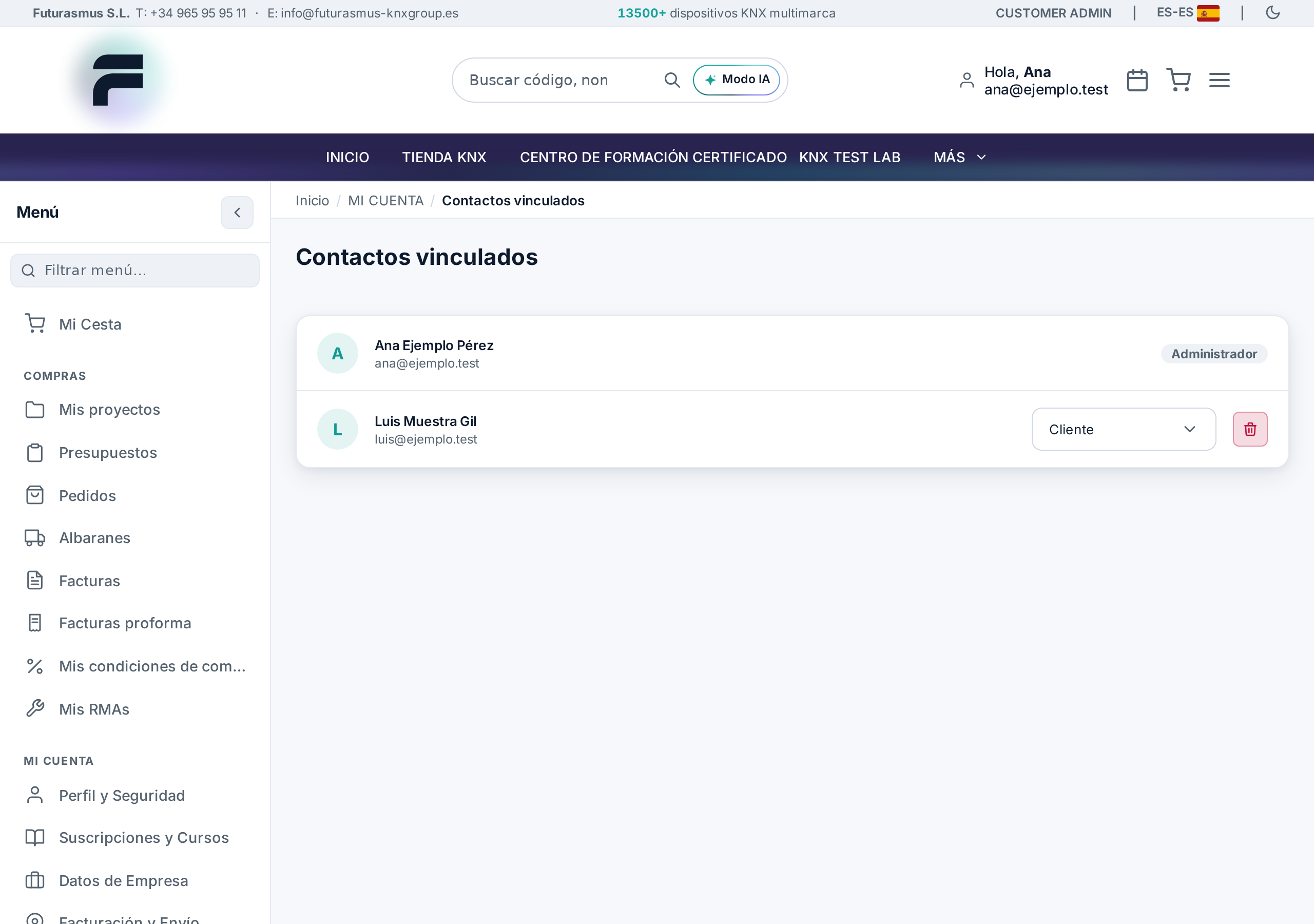
In "Linked Contacts" appears each person from your company who can enter the account, with their email and the role they have.
For a new colleague to enter, they first create their user account with the company email; from there they appear here and are assigned the appropriate role.
If it is empty, it means that there is still no one else with access to the account besides you.
#The three roles
View only, Client and Administrator. What each one can do is defined by the store's permission settings.
View only is for those who need to consult without intervening.
Client is the normal work role within the account.
Administrator is, in addition, the person who manages the contacts themselves: they are the only one who can change roles and unlink.
The fine detail of which screens each role accesses is not fixed: it comes from the store's permission configuration, which is managed from the administration panel.
#Change someone's role
It is changed from the list itself, in the selector of that person's row.
The change is immediate and affects the next time that person logs in.
- Step 1
Open "Linked contacts"
In "My account". If you are not an administrator, you will see the list but will not be able to modify it.
- Step 2
Choose the role in that person's row
The row selector offers the three roles: View only, Client, and Administrator.
#Unlink someone
Unlinking removes that person's access to the company account; confirmation is requested beforehand.
Unlinking does not delete anyone's personal account: what it removes is access to your company's account, with its prices and documents.
As it is what cuts off access to company information, the screen requests express confirmation before doing so.